Virtual Agents
Use Virtual Agents- to view this screen
Virtual Agents main function is to emulate a real device, mainly for development use when a real mobile agent is not available. This functionality allows tests such as enrollment, transaction decision, profile sharing, backup and recovery.
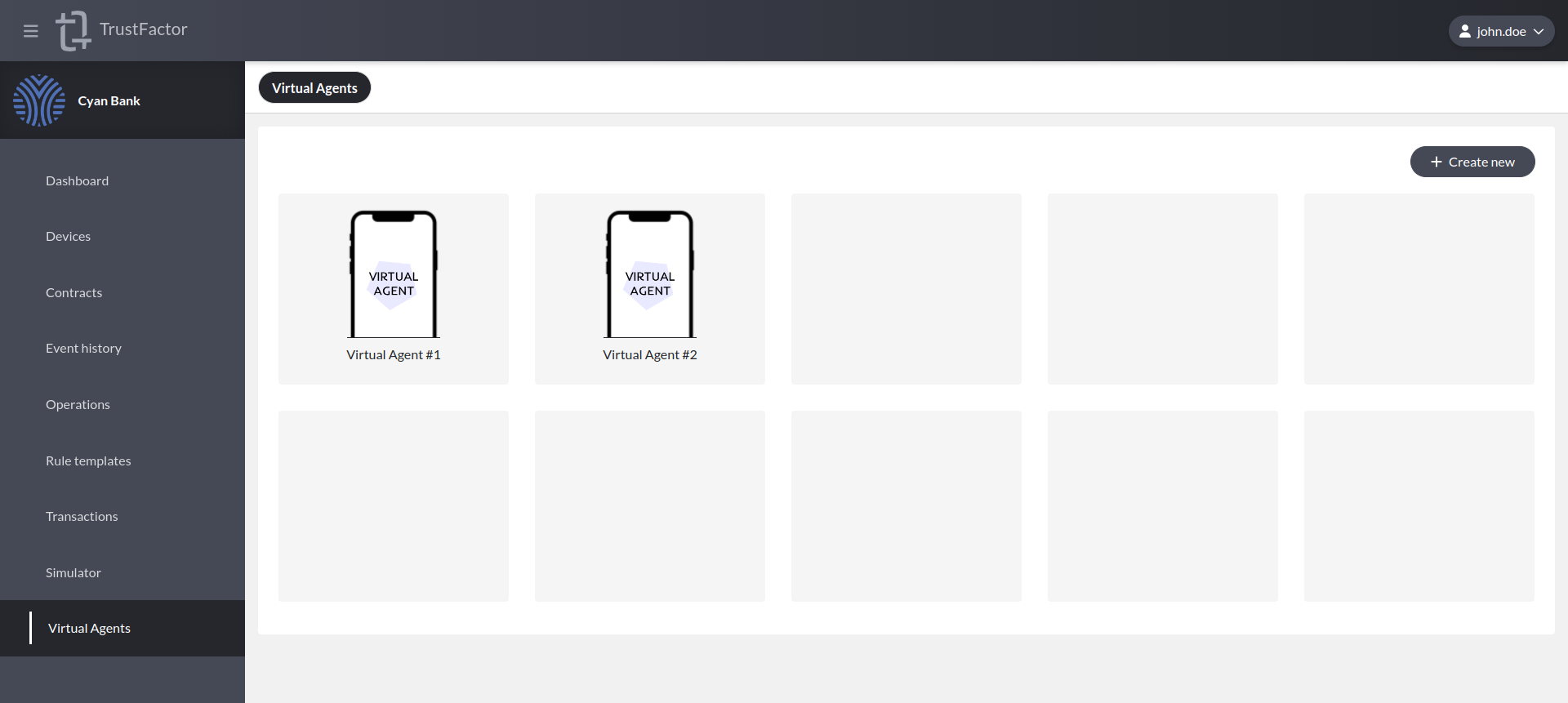
Create Virtual Agent
When creating a Virtual Agent, you are registering a "TFVA" device (that is the make and model shown in the Devices tab), and you can choose the location and authentication mechanisms (Biometrics and Password). This is akin to installing the mobile agent application on an Android or iOS device.
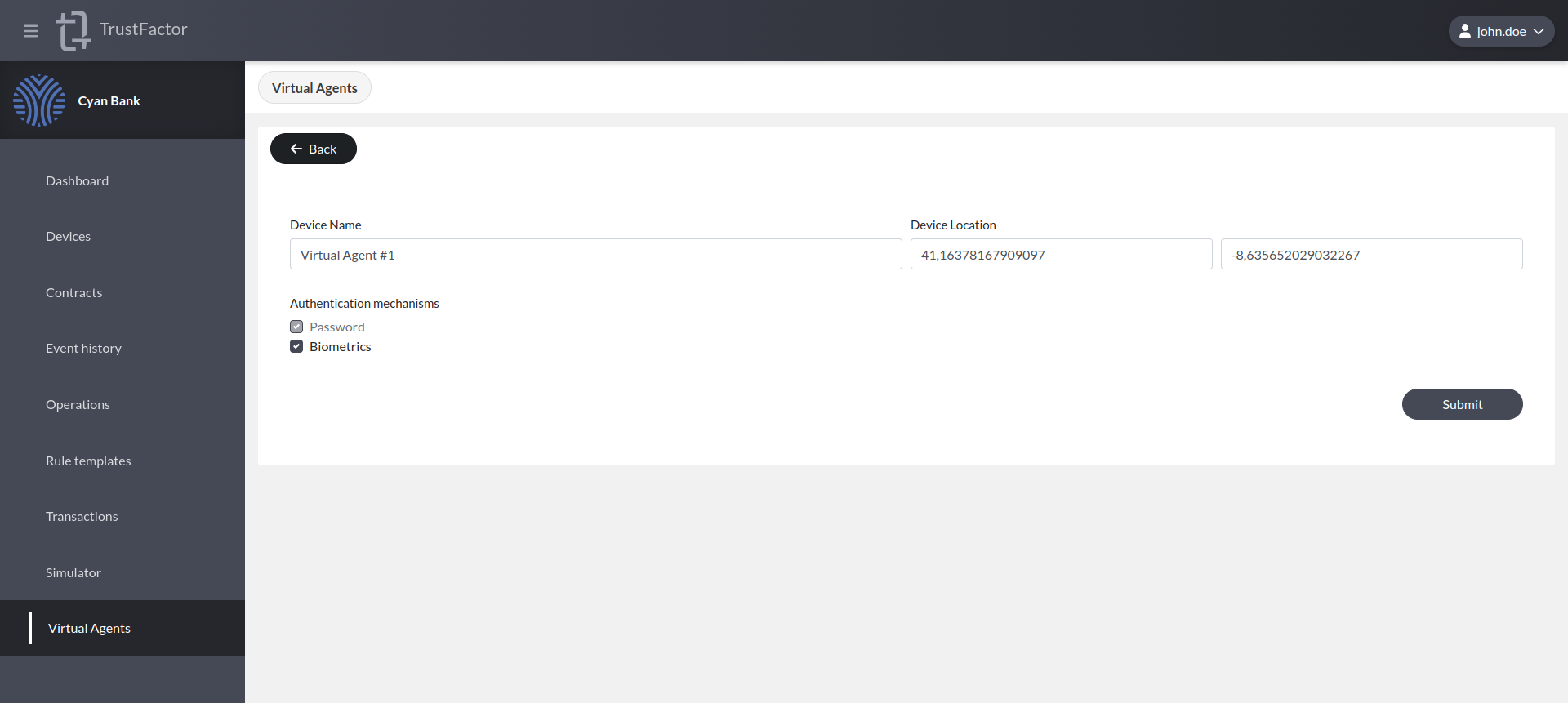
Virtual Agent Details
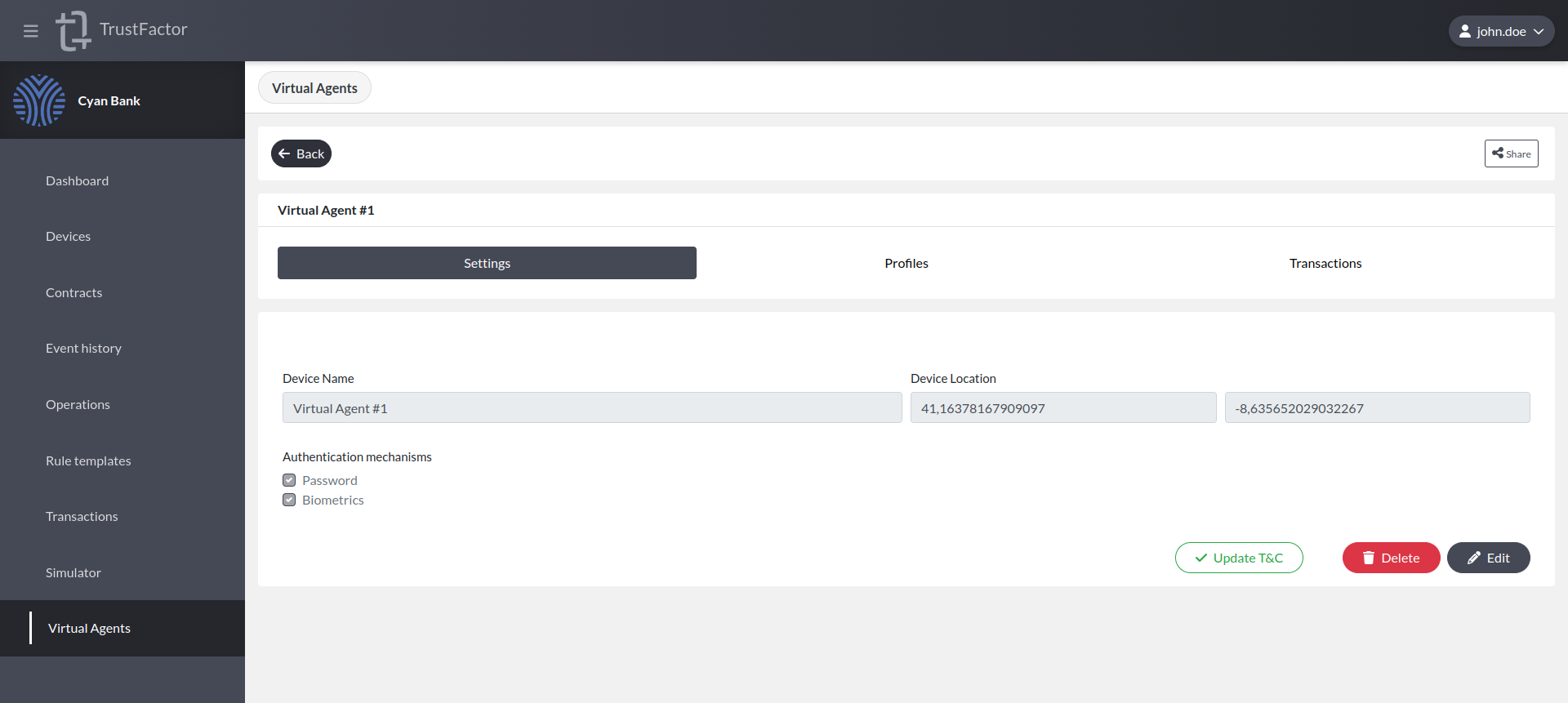
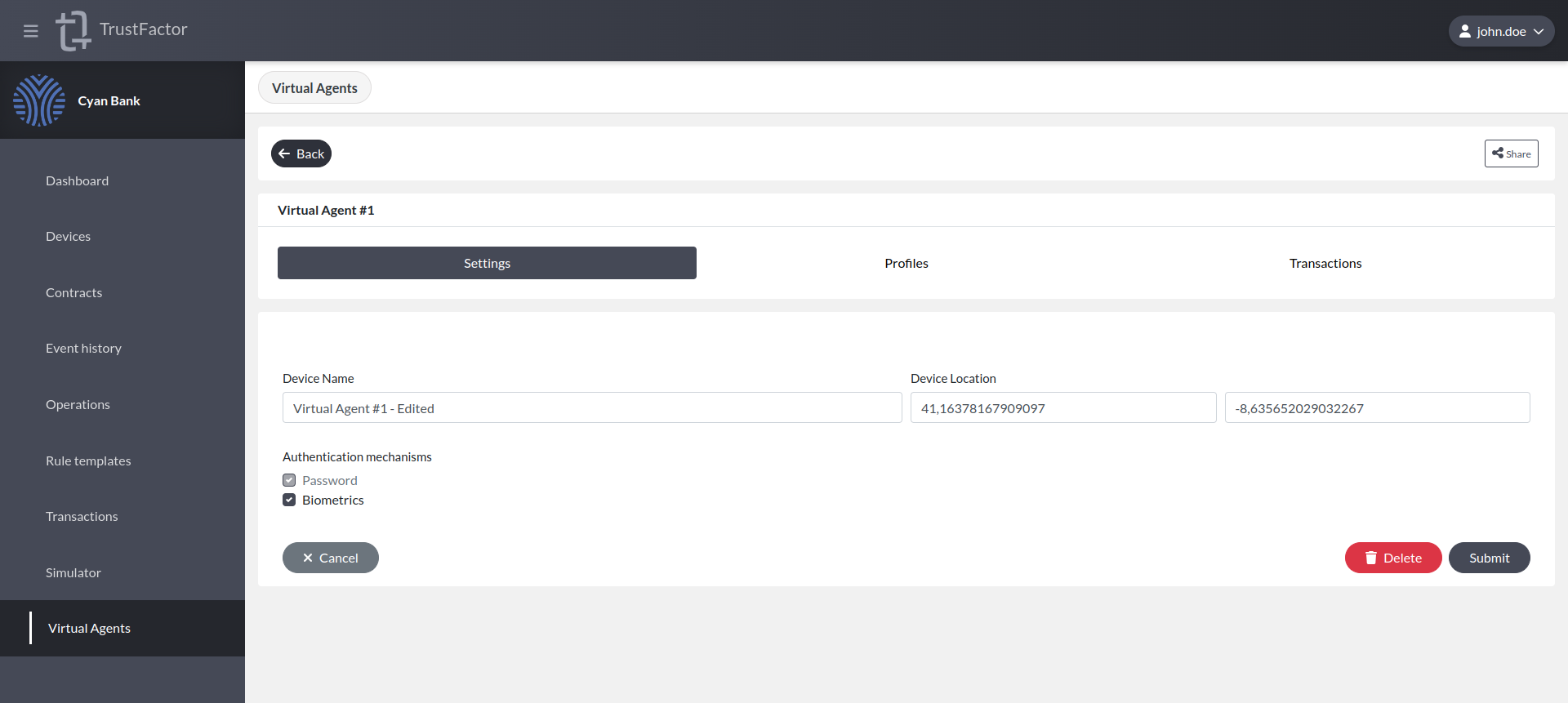
Settings
You will be able to view and edit the device settings if necessary.
Profiles
You will be able to view and manage profiles: register, share, remove, recover and create backup.
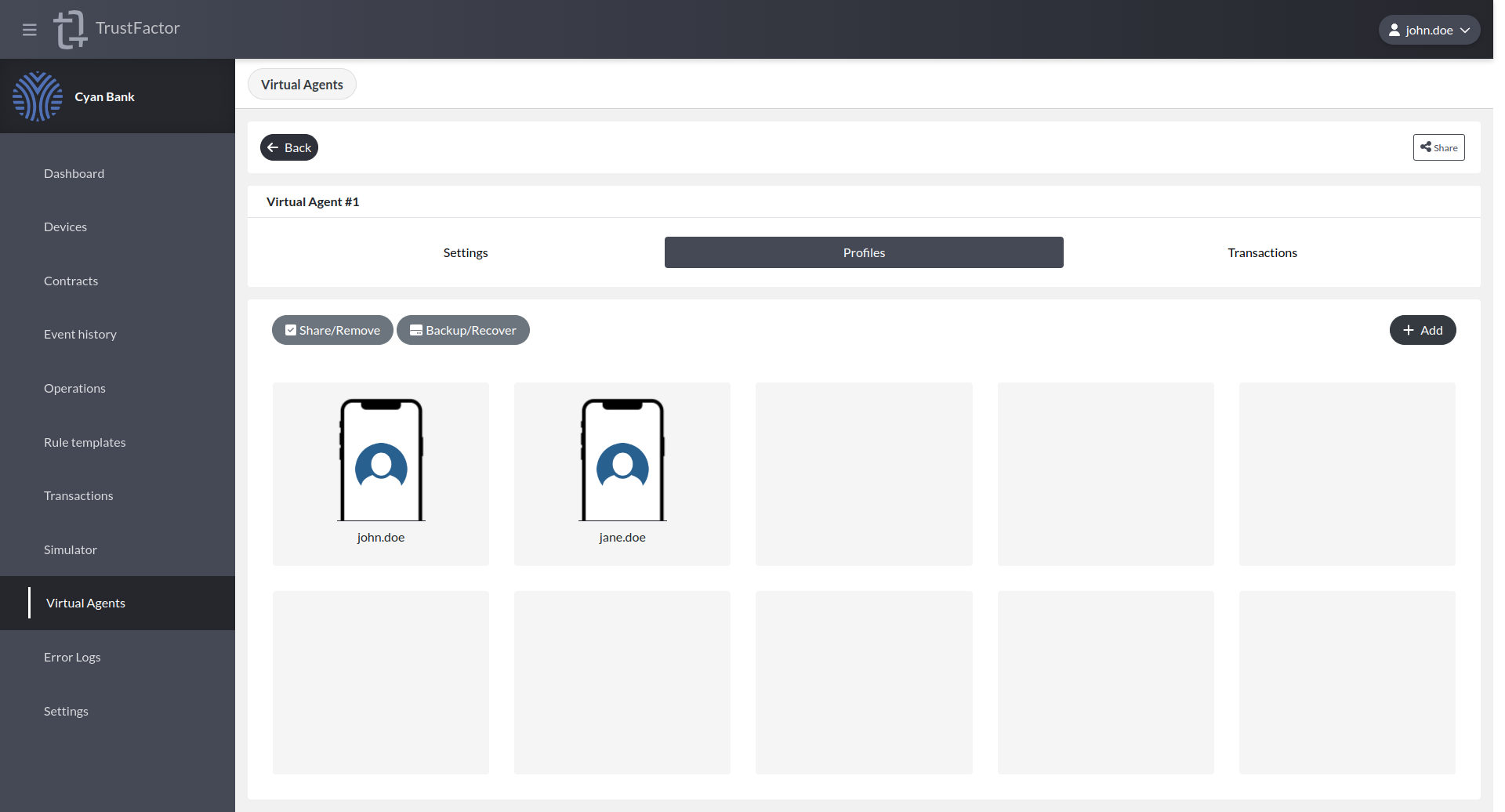
Profile Registration
In order to enroll a virtual agent with a profile from your application, you must first use the SDK to obtain a registration deep link URL, just like in a real TrustFactor agent. This is akin to scanning a QR code or opening a registration deep link with the TrustFactor App.
To register the profile, open the Virtual Agent you wish to enroll and access the "Profiles" tab. Use the "Add +" button to open the input box where you can enter the deep link URL to complete the registration.
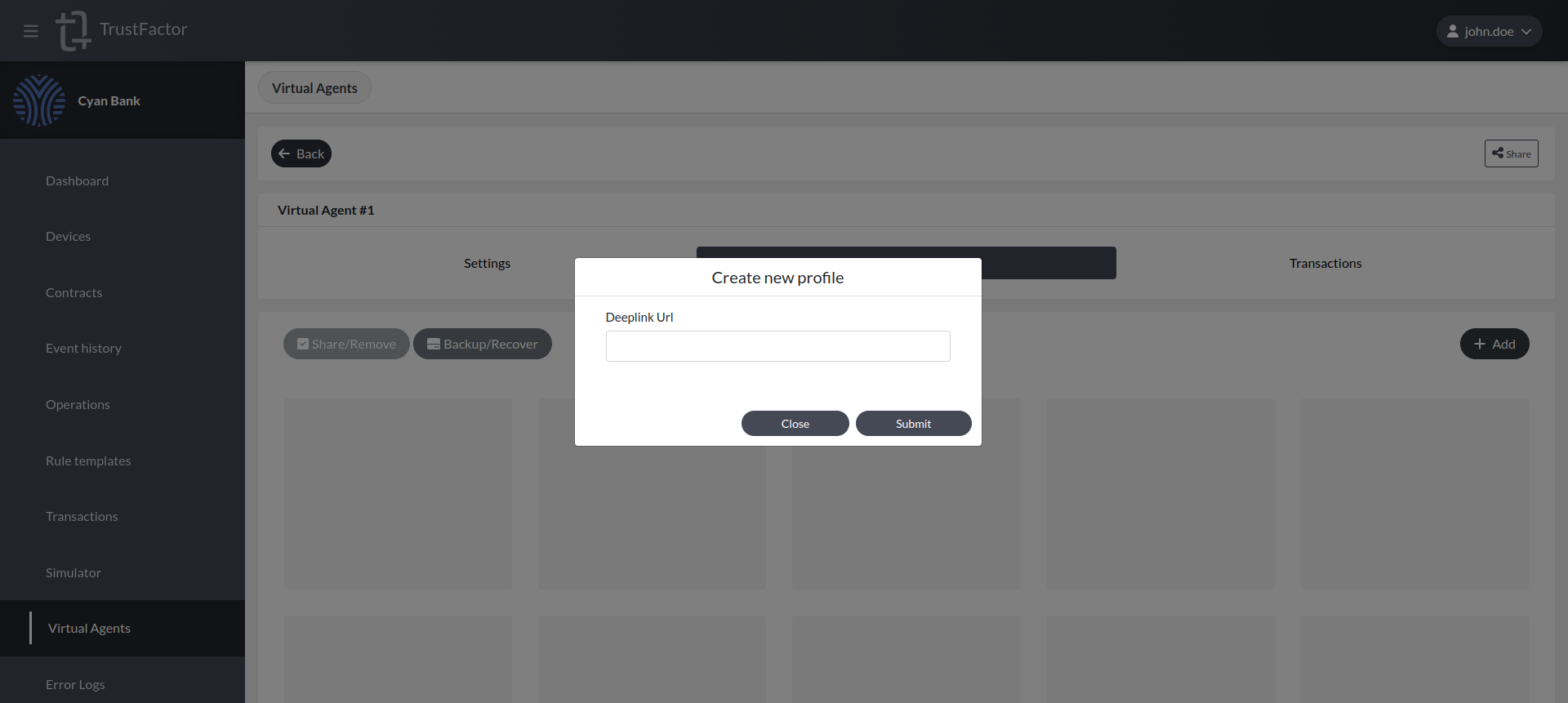
If the registration code requires a precise location, the Virtual Agent shares the position configured in its settings. A Virtual Agent whose position has not been configured shares none, and the registration is refused exactly as it would be for a real device with no location fix.
Profile Share/Remove
You can remove or share profiles between Virtual Agents, just like in the real agent apps.
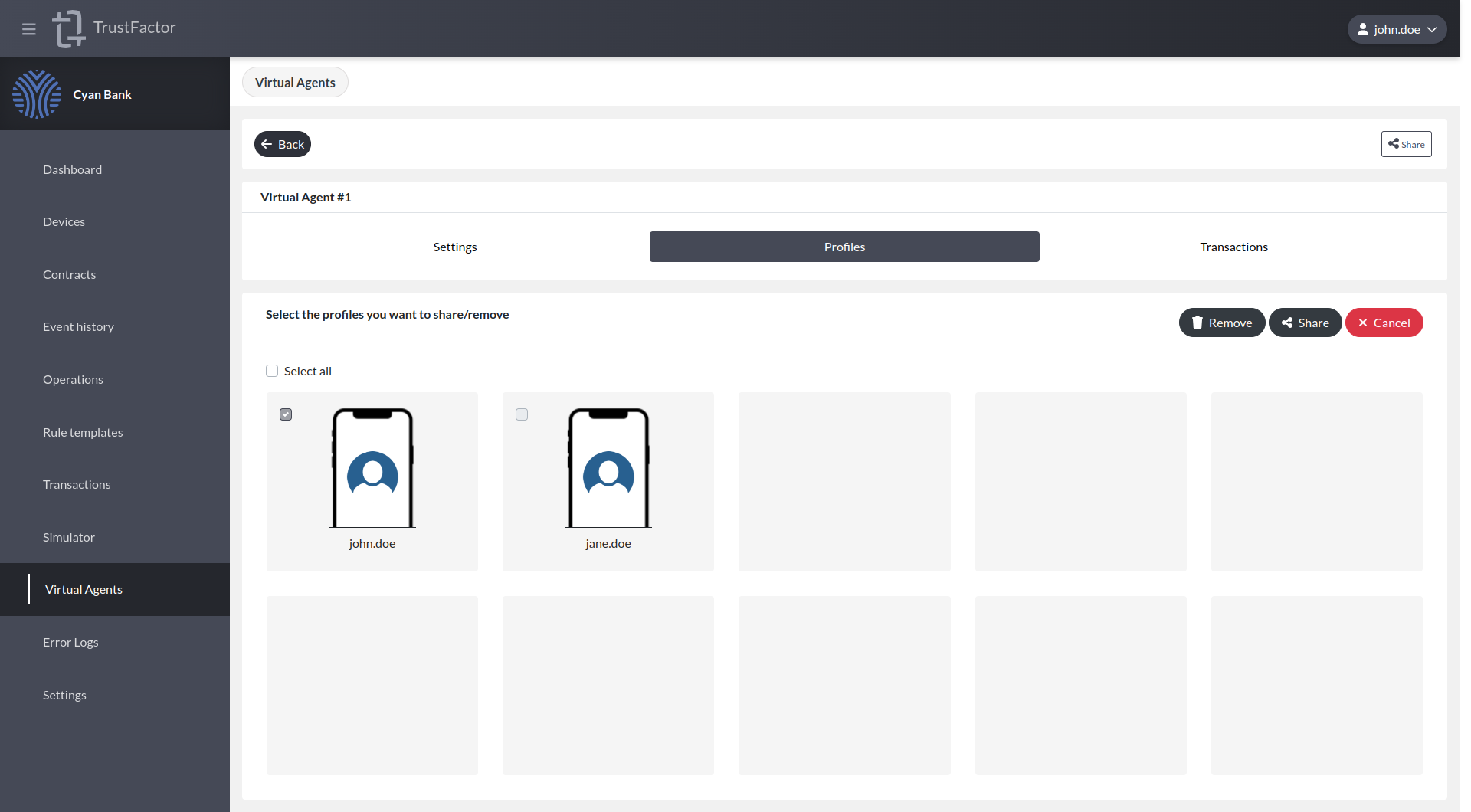
Remove
To remove profiles from the Virtual Agent, click on the "Share/Remove" button, then select which profiles you want to remove and finally click on the "Remove" button.
Share
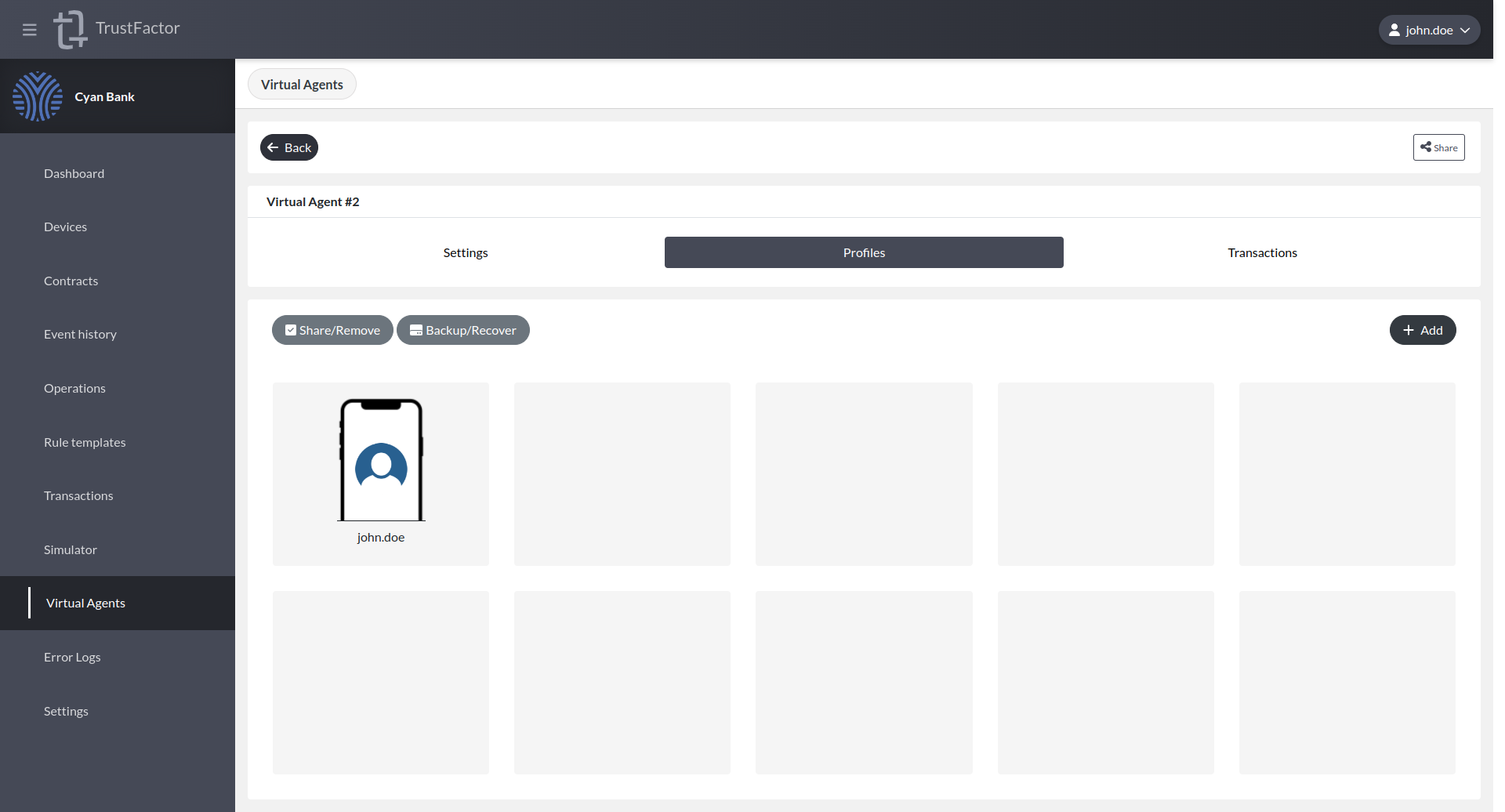
To share profiles from the Virtual Agent, click on the "Share/Remove" button, then select which profiles you want to share, finally click on the "Share" button and select which Virtual Agent you want to share and click on "Share".
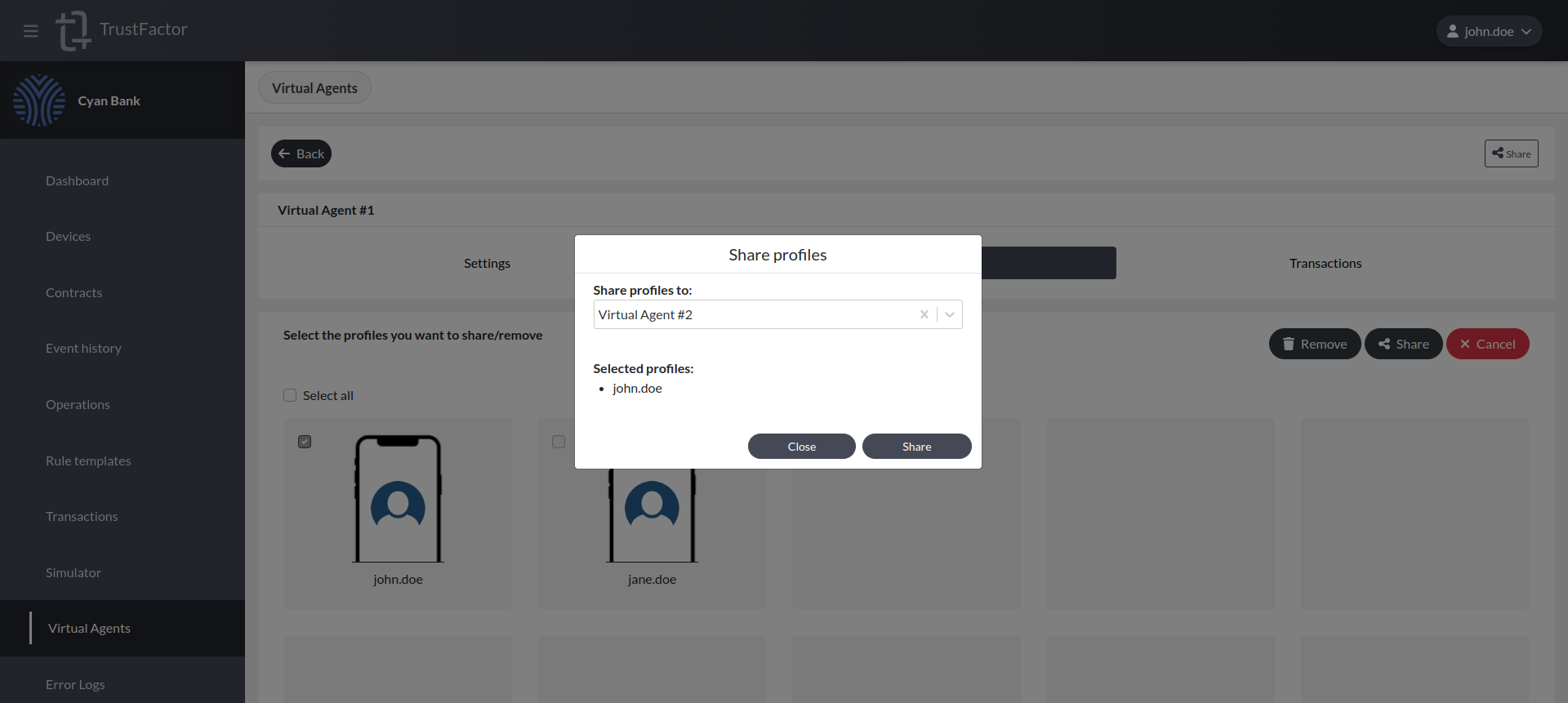
In the example you can see that in the Virtual Agent "Virtual Agent #2", it contains the profiles that were previously shared.
Profile Backup/Recover
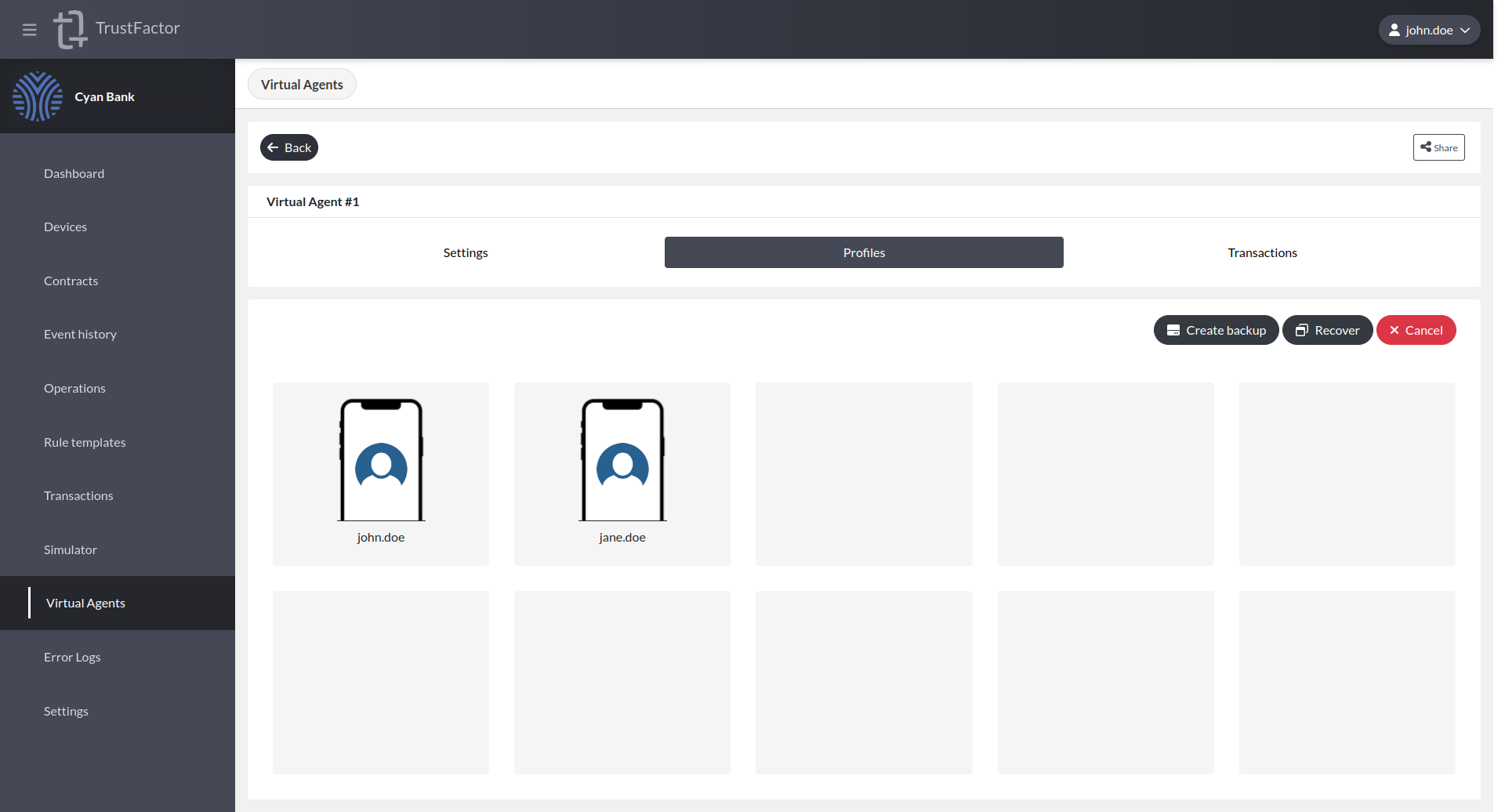
Here you can generate a backup or recover profiles (using the code generated by a backup).
Backup
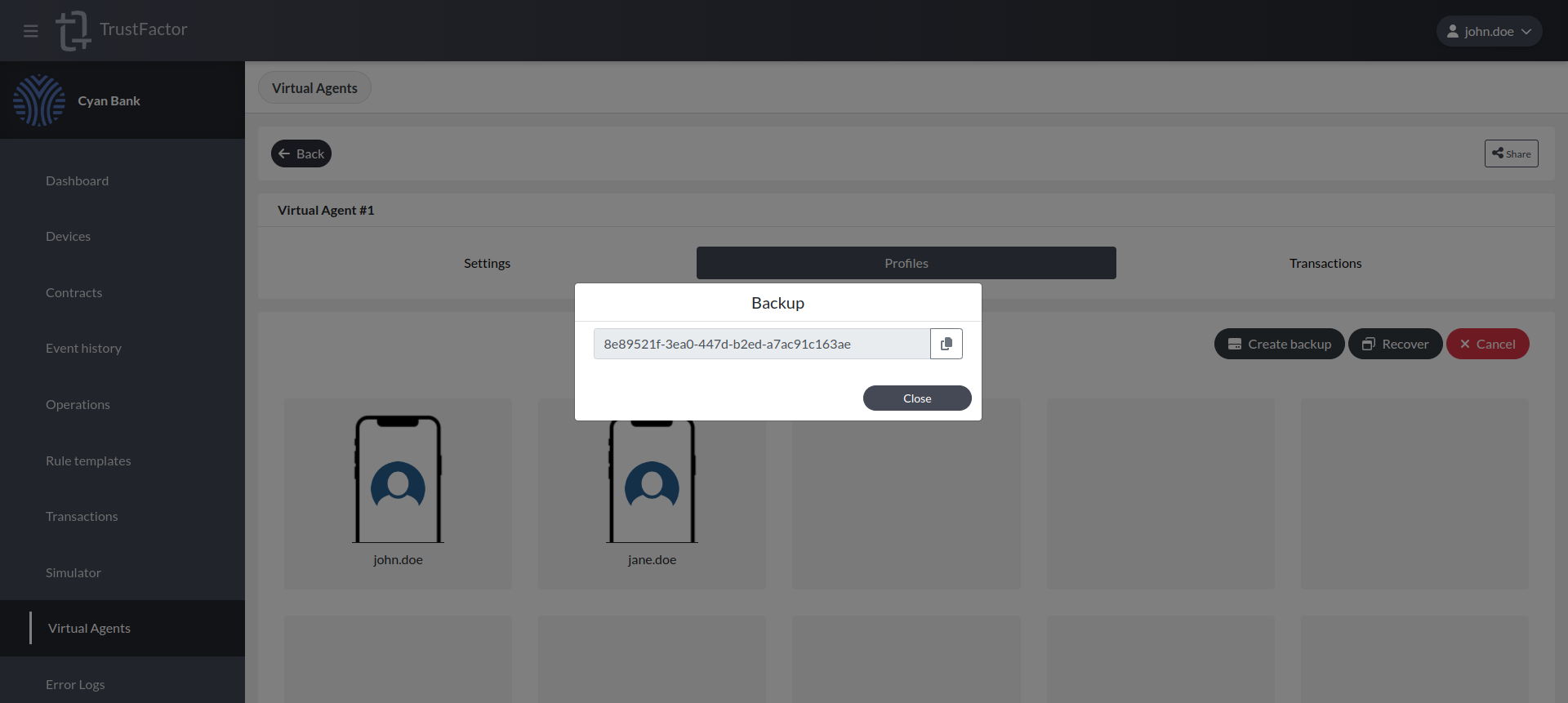
To generate a backup, click on the "Backup/Recover" button and then on "Create backup" and wait until the request finishes and the recovery code is displayed.
Recover
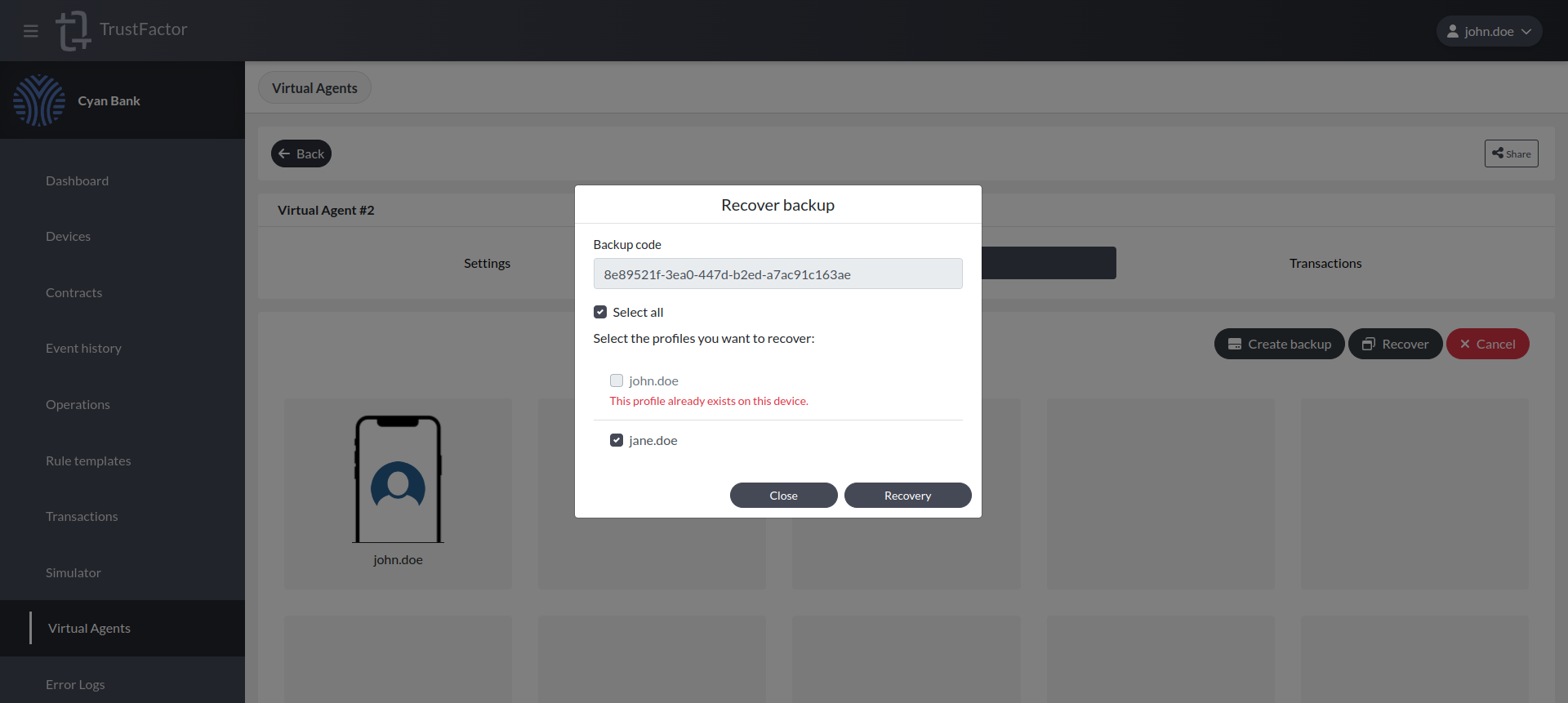
To perform the recovery, press the "Backup/Recover" button, then "Recover" and enter the recovery code.
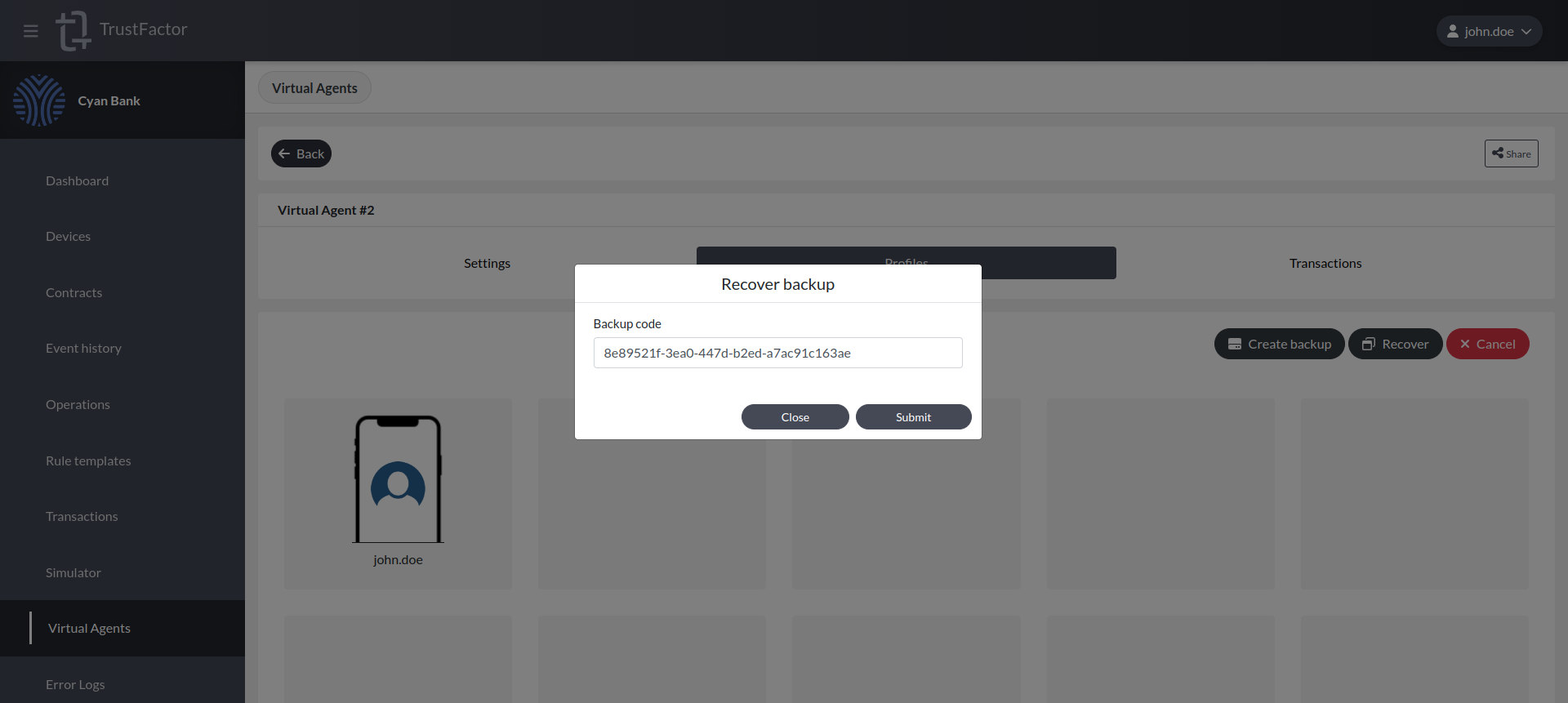
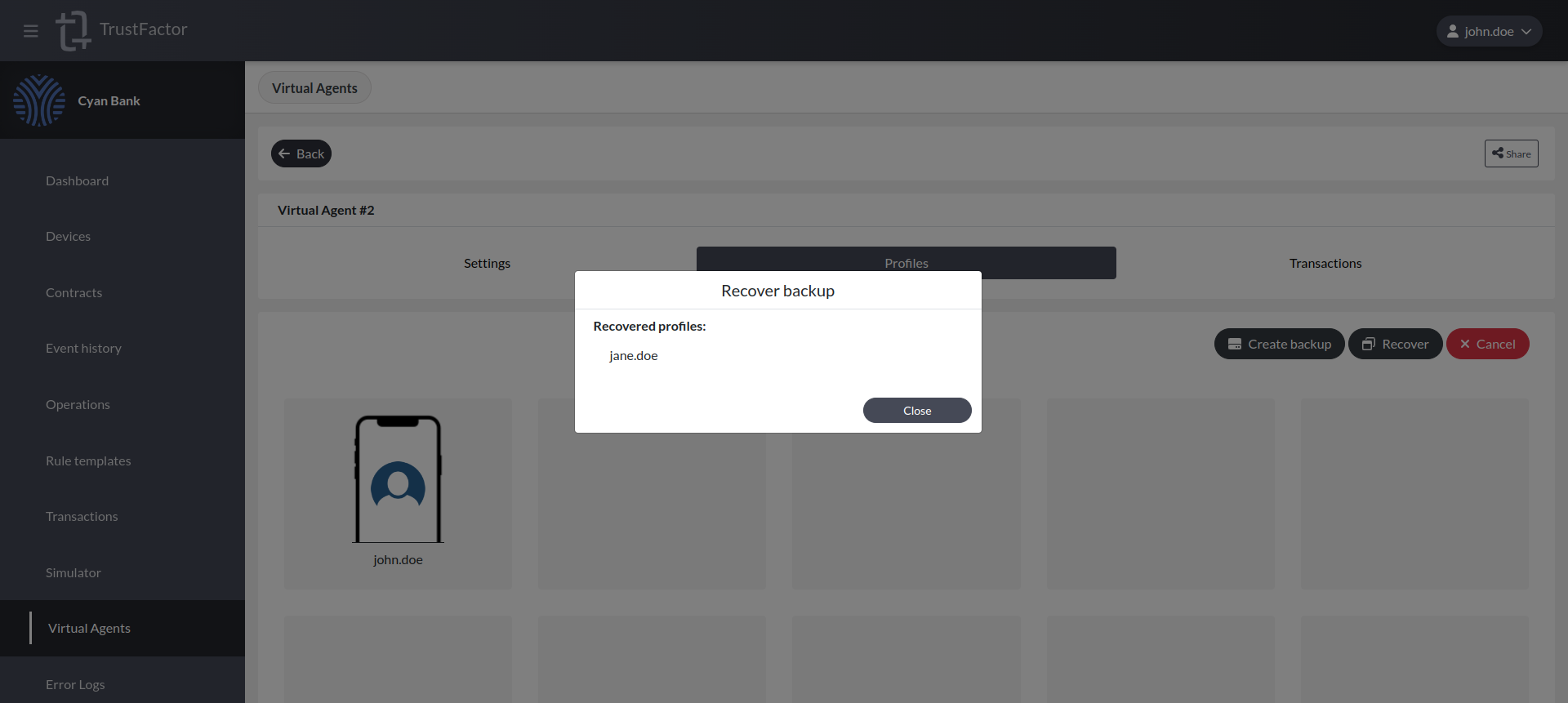
Then select the profiles you want to recover and wait for the response, if it is not possible to recover any profile, the reason will be displayed.
Transactions
Here will appears all active transactions, generated for all profiles associated to the current device.
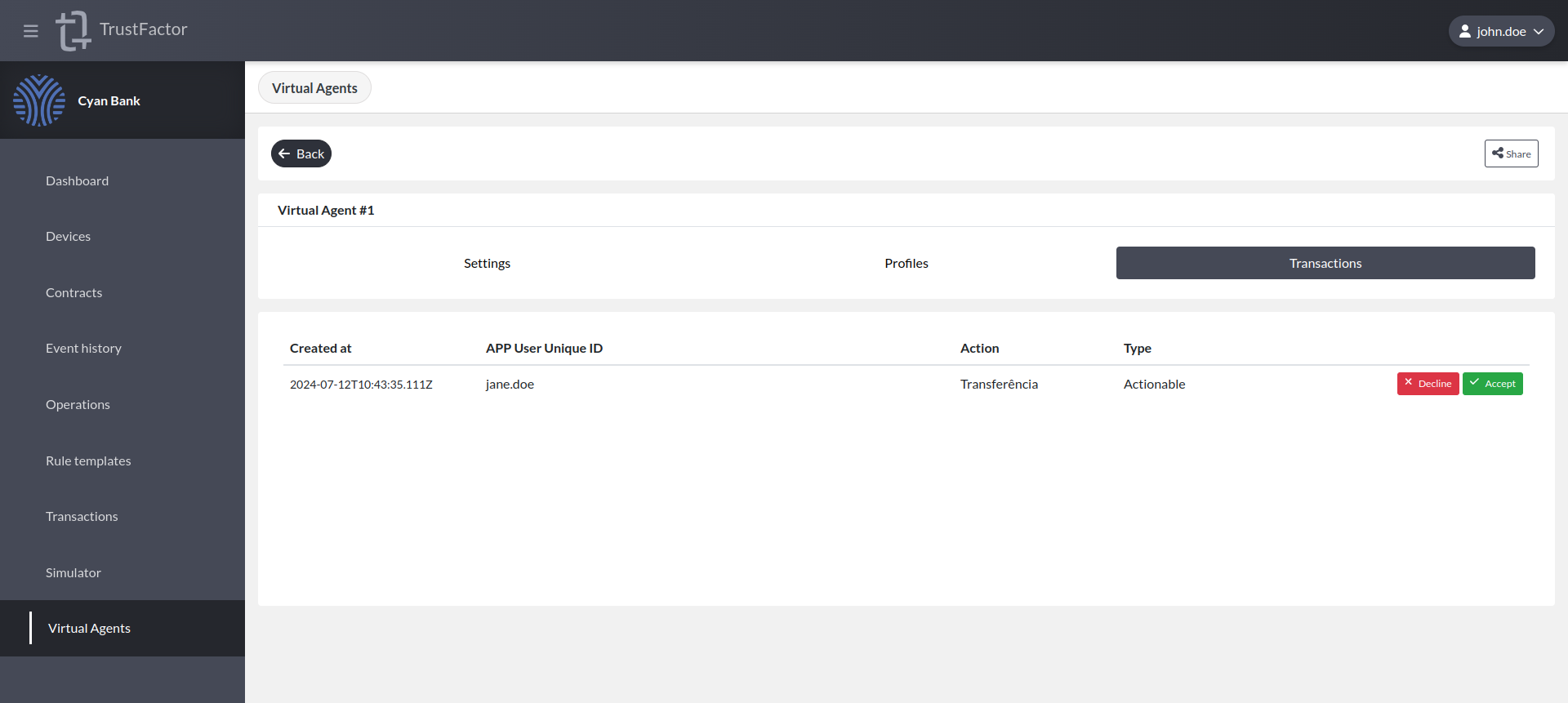
When a transaction requires a confirmation code, the decision screen shows the list of options and asks which one to pick, just as the TrustFactor App would.
A Virtual Agent is an agent, and is held to the same rule as a real device: it is never shown which of the options is the correct code. To decide such a transaction you need the correct code from wherever the client application displayed it. Picking the wrong one fails the transaction, and it cannot be decided again.